Help › Labels & scanning
Print labels
Every record's ID can be printed as a QR label with its name and date. Print one from its page, or collect many on the label sheet and print them together.
Free on every plan- Click the QR label next to any ID to print that one, or Add to sheet to collect it.
- The printer icon at the top of the page shows how many labels are waiting; open it and choose Print.
- Choose Sheet for 30-up sheets (Avery 5160, or the waterproof 30-up kind for jars and grow rooms), or Roll for a label printer.
- On a partly used sheet, set Start at position to the first empty label.
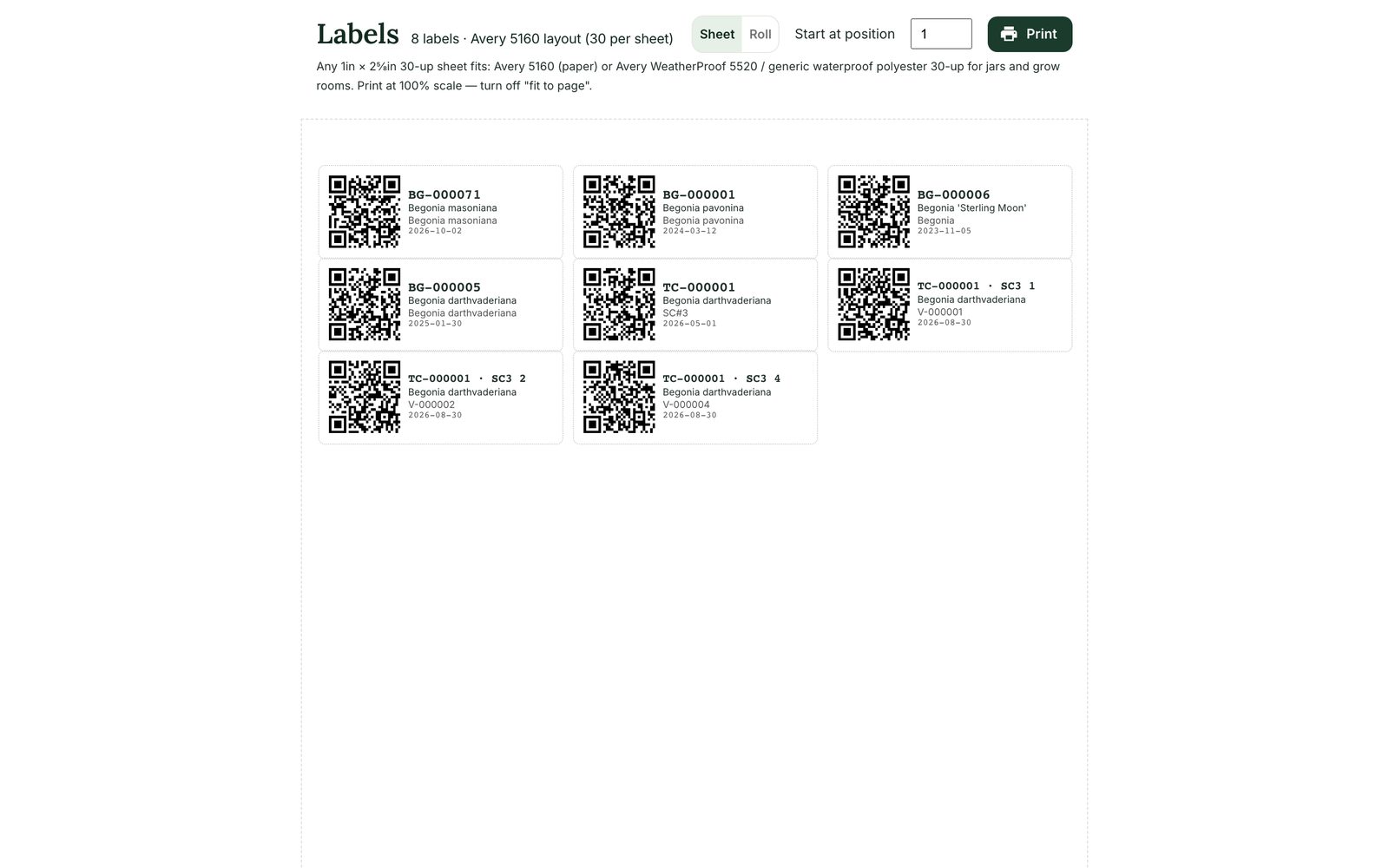
Tip: Print at 100% scale with “fit to page” turned off, so the labels line up.
Reports → Labels can also pick labels by kind, for example every culture line or every seed lot.
Still stuck? Tell us what you were trying to do.Contact support